
A clear first step.
Then the next one.
Start with a student or educator guide, then explore each learning mode and game. Watch recorded walkthroughs or follow the written guides. Exact screens vary by release and language pack.
One video. Your language beneath it.
Explore the current feature tutorial collection. Choose a caption language and natural or primer wording. Recorded narration is available for matching cues in English, Hungarian, Tagalog and Cebuano. These recordings cover the basic app features; the six games have written guides below.
Loading the library…
The video pauses for each caption so you can read before the action continues. These recordings show the mobile interface; screens may vary by release.
Your first learning session
Begin with the foundation
Arachnomind and PrimeMentality form the required $50 base pack for your target language.
Follow what catches your attention
Choose a word lesson, a reading passage or a game. Connect unfamiliar words to examples, sounds and meaningful actions.
Choose a way to practise
Add BootEye for spatial listening, Backstage for book-based practice or Open Mic for speaking practice.
Create and share a class content pack
Start with your learners
Choose the target language, known vocabulary, interests and the next concept or objective. Plan for an individual, a group or a whole class.
Create and check
Use the app’s authoring workflow to create lessons and explanations against a vocabulary pool. AI features require their configured provider or credits; content purchases are separate.
Review and revise
Check the vocabulary report, revise the draft, and review its accuracy, natural phrasing and teaching fit.
Prepare and distribute
Package suitable content and share it privately with your class through the authoring and enrollment-code workflow. Student access and seat limits depend on the pack configuration.
Support the learning
Connect with students through tutor pairing, assign vocabulary homework and view progress shared with you. Text and voice-note exchanges support feedback.
Create your first lesson
The labels below are the English interface labels. Your selected interface language may translate them.
Open New lesson
On the lesson home screen, choose New lesson. Enter a Topic and choose the lesson style, such as creative, primer commentary or blended definition. For a creative lesson, you can turn on Plan with a spec first before choosing Create.
Write and check the draft
Work in the lesson editor. Inspect the compiler’s highlighted problems and vocabulary checks. When a word is out of pool, rewrite the passage yourself using an approved expression, then check again.
Save a draft, then publish
Drafts save privately as you work. Read the whole lesson for meaning, accuracy and teaching fit. Choose Publish when you want learners to see this version; saving a draft alone does not publish it.
Turn a word list into practice.
Use this with a tutor, classroom teacher, parent or language exchange partner.
Share a learning report
The learner opens Settings → Share with my tutor, chooses what to share and gives their report link to the person helping them. That link opens the report and its homework controls.
Choose the target words
Set the vocabulary homework on the shared report. With an active tutor pairing, you can also choose Set homework on the tutor dashboard, select the language, enter words and send them.
Bring the homework into play
The learner refreshes their shared report in the app to receive the assignment. Starplot, BodySpeak, Pocket Country, Kocos and Protect the Valley prioritize relevant assigned vocabulary within their activities. Pocket Country also supports an assigned starting town.
Review progress together
Return to the shared report or tutor dashboard to see homework progress and words demonstrated in play. Discuss difficult words and update the next assignment.
Assign a SceneShift mission
In a SceneShift practice room’s tutor page, choose a published mission, add a communication goal and prompt, choose the review mode and optionally set a due date. The learner refreshes the room to receive it and submits their work for review.
Pocket Country and SceneShift currently support English and Hungarian. More languages are planned.
Give each student a class code
Use this after your content is ready and your app has authoring access and a configured platform connection.
Submit the pack for screening
In the Marketplace authoring area, choose Submit this language pack. Follow the submission form, then open the pack in Submissions. Read its screening report and resolve any problems.
Choose Share with my class
Once screening succeeds, the submission offers Share with my class. Fill in Product id (sku), Class pack name, Seats (one per student) and the optional class note. Choose Mint codes.
Copy the codes immediately
In Enrollment codes, choose Copy all and give one code to each student. The clear codes are shown once. Unredeemed codes expire after 72 hours; you can issue a new code for an unused seat.
Check the class roster
Return to the private pack’s class roster to see redeemed and unused seats. A redeemed code gives the student permanent access to that pack. For progress sharing, students can open Settings → Share with my tutor and choose what they share.
Walk through Pocket Country.
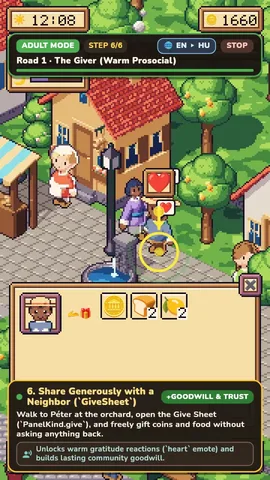
Follow the illustrated walkthrough through conversations, everyday tasks and the game’s learning activities.
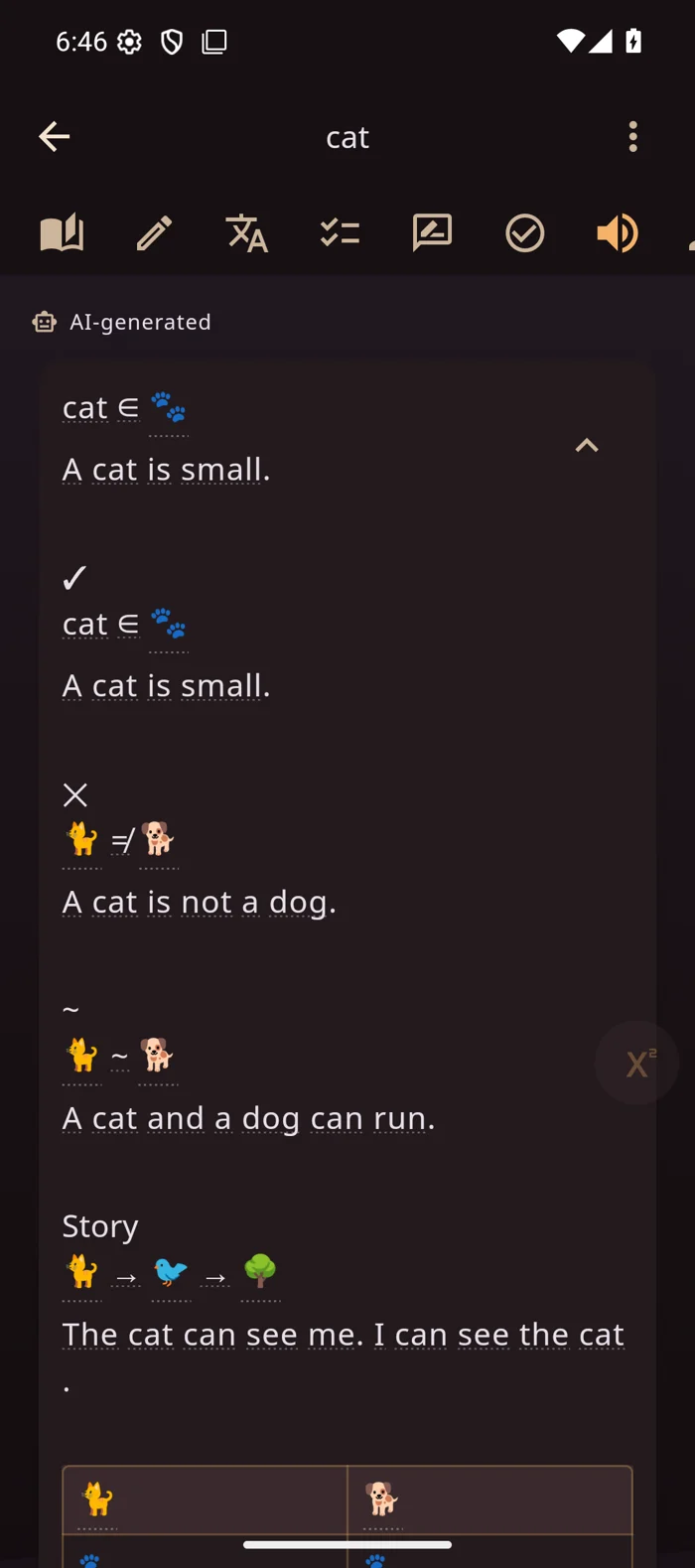
Arachnomind: inspect a word
Open a word lesson
Choose a word in your target language and inspect its examples and word-sense explanation.
Follow a connection
Select an available word or symbol to inspect the related concept, then return to the original lesson.
Check comprehension
Read or listen again and explain the idea in context. Revisit the supporting lesson if it remains unclear.
PrimeMentality: practise relationships
Choose an activity
Select a supported symbol, emoji or relationship exercise.
Listen and respond
Follow the prompt and make a selection. Review the feedback before continuing.
Return to the language
Use the symbols and relationships as support for the word lessons.
BootEye: explore by listening
Enter an environment
Choose an available scene in your language pack.
Listen and explore
Follow the spatial narration and inspect the environment.
Review unfamiliar words
Use the supporting vocabulary lessons before returning to the scene.
Backstage: practise with a text
Choose a text
Use a supported library title or import an appropriate text through Native Gateway.
Work through context
Read the surrounding passage and use the available reading, typing or listening practice.
Return for review
Use the scheduled practice queue; completion of an activity is not proof of language mastery.
Open Mic: speaking practice
Choose a topic
Select a supported prompt or context.
Record and inspect
Use the speaking workflow and review the transcript or intended wording.
Ask for human feedback
A knowledgeable listener or tutor can review pronunciation and natural expression.
Starplot
Choose the game
Open the game from CradleSpeak with content available for your target language.
Follow the activity
Draw meaning into the night sky. Listen to the guide, place points and connect lines. Language gives you something to build, and your drawing becomes the result.
Connect back to learning
Use available word-lookup or supporting lesson links when needed. Review difficult language with your teacher or tutor.
BodySpeak
Choose the game
Open the game from CradleSpeak with content available for your target language.
Follow the activity
Learn through movement and sensation. Connect language to body parts, movement, breathing and felt experience. Inner World adds guided, reflective practice.
Connect back to learning
Use available word-lookup or supporting lesson links when needed. Review difficult language with your teacher or tutor.
SceneShift
Choose the game
Open the game from CradleSpeak with content available for your target language.
Follow the activity
Use language to handle a situation. Work through scene-based missions with examples, decisions, responses and opportunities to revise. Language packs supply the learning content.
Connect back to learning
Use available word-lookup or supporting lesson links when needed. Review difficult language with your teacher or tutor.
Pocket Country
Choose the game
Open the game from CradleSpeak with content available for your target language.
Follow the activity
A foreign country in your pocket. Explore a town, meet its people and navigate everyday situations. Conversations and practical tasks give unfamiliar words a reason to matter.
Connect back to learning
Use available word-lookup or supporting lesson links when needed. Review difficult language with your teacher or tutor.
Kocos the Mischievous Ghost
Choose the game
Open the game from CradleSpeak with content available for your target language.
Follow the activity
A little mischief. A reason to understand. Follow a playful ghost through story-led situations. Actions and consequences give the language a concrete context.
Connect back to learning
Use available word-lookup or supporting lesson links when needed. Review difficult language with your teacher or tutor.
Protect the Valley
Choose the game
Open the game from CradleSpeak with content available for your target language.
Follow the activity
Make a plan. Understand the consequences. Explore, coordinate and protect a shared world through strategy-led situations. Practise the language of plans, resources and decisions.
Connect back to learning
Use available word-lookup or supporting lesson links when needed. Review difficult language with your teacher or tutor.
Try a small vocabulary example.
A reader that stays inside the word list.
Try this sample draft: check the word list, spot the out-of-pool word and the missing lemma link, then see both corrections.
CradleSpeak checks lemmas against your vocabulary pool. An inflected word must be linked to an approved lemma. In the revision, the small “ball” above “balls” shows that link.
Camera, microphone, audio, AI and sharing features depend on platform support, permissions, connectivity and configured services.